



아두이노로 가스 경보기를 만들기
- 용도: 가스렌지 사용할 때
- 기능: 타이머 카운트 후 알람, 가스 누출시 알람
사용된 부품
- 아두이노 NANO V3
- 가스 센서 모듈: http://www.ogamtech.com/
- 부저
- 볼륨저항
- Waveshare OLED: http://www.wvshare.com/product/1.3inch-OLED-B.htm
- Waveshare DHT11: http://www.wvshare.com/product/Temperature-Humidity-Sensor.htm
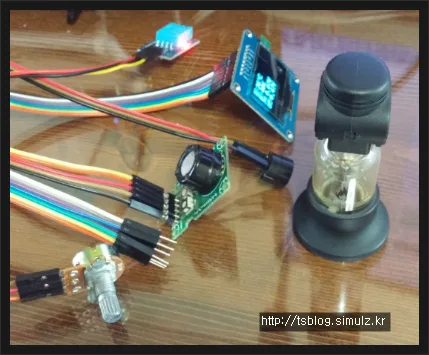
볼륨저항은 경보 상한을 설정하는 용도이다. 테스트용으로만 사용했으며 기판 납땜시 제외 했다. 버튼으로 설정함.
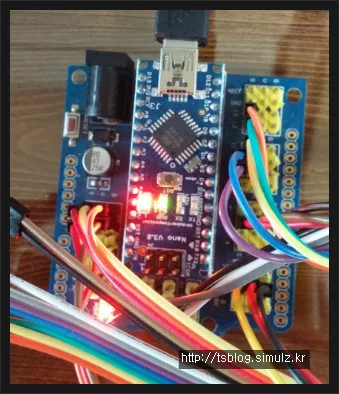
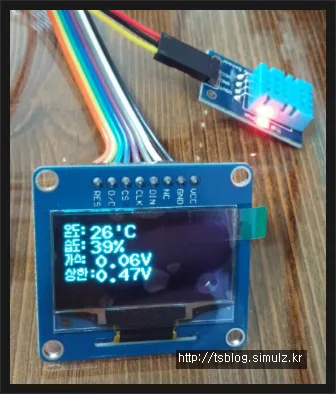
테스트할 때는 라이터를 사용한다. 살짝 누르면 가스만 나온다.
소스코드
C
/*
 * 제목: 가스 경보기
 * 만든이: simulz.kr
 * email: [email protected]
 * 날짜: 2015-09-12
 */

char S[100];

// 가스
int GasPin = A0;
int GasValue = 0;
float dblGasValue = 0;

// 볼륨
int VrPin = A1;
int VrValue = 0;
float dblVrValue = 0;

// 부저
int BuzzerPin = 6;
int LEDPin = 5;

// Boolean
bool Alarm;


/* 비트맵 */
// 온도 16*10
const uint8_t text_temp[] PROGMEM = {
  115, 224, 138, 0, 138, 6, 114, 6, 3, 224, 32, 0, 248, 134, 0, 134, 128, 128, 251, 224
};
// 습도 16*10
const uint8_t text_humi[] PROGMEM = {
  35, 224, 82, 0, 138, 6, 2, 6, 251, 224, 0, 0, 136, 134, 248, 134, 136, 128, 251, 224
};
// 가스 16*10
const uint8_t text_gas[] PROGMEM = {
  232, 64, 40, 160, 40, 166, 41, 22, 45, 16, 72, 0, 73, 246, 136, 6, 136, 0, 0, 0
};
//상한 24*10
const uint8_t text_upper[] PROGMEM = {
  34, 25, 0, 82, 125, 0, 83, 57, 12, 138, 69, 140, 138, 69, 0, 0, 57, 0, 124, 1, 12, 130, 64, 12, 130, 64, 0, 124, 127, 0
};

// OLED
#include "U8glib.h"
#include <math.h>

// SW SPI Com: SCK = 13, MOSI = 11, CS = 10, A0 = 9
U8GLIB_SH1106_128X64 u8g(10, 9, 12, 11, 13);


// 온습도계
double Fahrenheit(double celsius)
{
  return 1.8 * celsius + 32;
}

double Kelvin(double celsius)
{
  return celsius + 273.15;
}

double dewPoint(double celsius, double humidity)
{
  double A0 = 373.15 / (273.15 + celsius);
  double SUM = -7.90298 * (A0 - 1);
  SUM += 5.02808 * log10(A0);
  SUM += -1.3816e-7 * (pow(10, (11.344 * (1 - 1 / A0))) - 1) ;
  SUM += 8.1328e-3 * (pow(10, (-3.49149 * (A0 - 1))) - 1) ;
  SUM += log10(1013.246);
  double VP = pow(10, SUM - 3) * humidity;
  double T = log(VP / 0.61078); // temp var
  return (241.88 * T) / (17.558 - T);
}

double dewPointFast(double celsius, double humidity)
{
  double a = 17.271;
  double b = 237.7;
  double temp = (a * celsius) / (b + celsius) + log(humidity / 100);
  double Td = (b * temp) / (a - temp);
  return Td;
}

#include <dht11.h>

dht11 DHT11;

#define DHT11PIN 2


// 그리기
void draw(void) {

  // graphic commands to redraw the complete screen should be placed here
  u8g.setFont(u8g_font_9x15B);
  u8g.setFontRefHeightAll();
  u8g.setDefaultForegroundColor();
  u8g.setFontPosTop();

  // 온도
  u8g.drawBitmapP( 0, 1, 2, 10, text_temp);
  dtostrf(DHT11.temperature, 2, 0, S);
  u8g.drawStr( 20, 0, S);
  u8g.drawStr( 38, 0, "'C");

  // 습도
  u8g.drawBitmapP( 0, 13, 2, 10, text_humi);
  dtostrf(DHT11.humidity, 2, 0, S);
  u8g.drawStr( 20, 12, S);
  u8g.drawStr( 38, 12, "%");

  // 가스
  u8g.drawBitmapP( 0, 25, 2, 10, text_gas);
  dtostrf((dblGasValue / 1024) * 5, 4, 2, S);
  u8g.drawStr( 24, 24, S);
  u8g.drawStr( 60, 24, "V");

  // 상한 볼륨
  u8g.drawBitmapP( 0, 37, 3, 10, text_upper);
  dtostrf((dblVrValue / 1024) * 5, 4, 2, S);
  u8g.drawStr( 24, 36, S);
  u8g.drawStr( 60, 36, "V");
}

void setup(void) {
  u8g.setColorIndex(1);         // pixel on

  Serial.begin(9600);
  Serial.println("DHT11 TEST PROGRAM ");
  Serial.print("LIBRARY VERSION: ");
  Serial.println(DHT11LIB_VERSION);
  Serial.println();
}

void loop(void) {

  Serial.println("\n");

  int chk = DHT11.read(DHT11PIN);

  Serial.print("Read sensor: ");
  switch (chk)
  {
    case DHTLIB_OK:
      Serial.println("OK");
      break;
    case DHTLIB_ERROR_CHECKSUM:
      Serial.println("Checksum error");
      break;
    case DHTLIB_ERROR_TIMEOUT:
      Serial.println("Time out error");
      break;
    default:
      Serial.println("Unknown error");
      break;
  }

  Serial.print("Humidity (%): ");
  Serial.println((float)DHT11.humidity, 2);

  Serial.print("Temperature (C): ");
  Serial.println((float)DHT11.temperature, 2);

  GasValue = analogRead(GasPin);
  dblGasValue = float(GasValue);

  VrValue = analogRead(VrPin);
  dblVrValue = float(VrValue);

  if (GasValue > VrValue) {
    Alarm = true;
  }
  else {
    Alarm = false;
  }

  // picture loop
  u8g.firstPage();
  do {
    draw();
  } while ( u8g.nextPage() );

  if (Alarm) {
    for (int i = 1; i <= 10; i++)
    {
      analogWrite(LEDPin, 255);
      analogWrite(BuzzerPin, 200);
      delay(100);
      analogWrite(LEDPin, 0);
      analogWrite(BuzzerPin, 25);
      delay(100);
    }
  } else {
    analogWrite(LEDPin, 0);
    analogWrite(BuzzerPin, 0);
  }

  // rebuild the picture after some delay
  delay(1000);

}
한글 글자는 비트맵으로 점찍어서 변환한 것이다.
납땜 작업
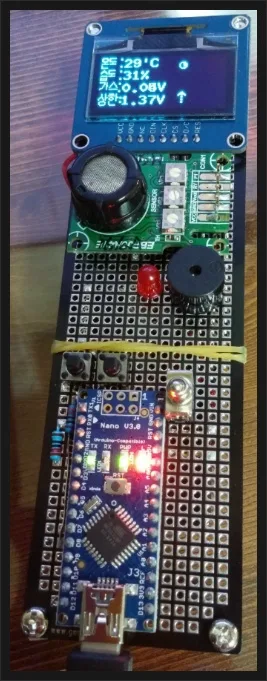
9V 배터리 커넥터를 연결하여 휴대용으로 사용 가능. 전원 스위치로 ON/OFF
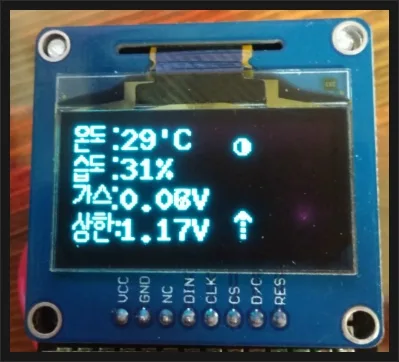
택스위치를 2개 연결했는데 버튼 하나로 상한 설정을 할 수 있다.
- 1번 키를 누를 때마다 값이 증가한다.
- 1번 키를 1초 이상 누르고 있으면 화살표가 반대로 되며 다시 1번 키를 누를 때마다 값이 감소한다.
- 2번 키는 화면을 바꾸거나 항목을 선택한다. (정보화면, 타이머 화면, 설정 화면 등)
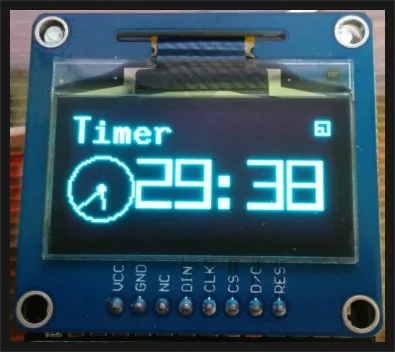
타이머 화면에서는
- 1번 키로 1분 단위로 증가하며
- 1번 키를 1초이상 누르면 10분 단위로 바뀌고 다시 1번키를 누를 때마다 10분씩 늘어난다.
- 2번 키로 시작 하거나 리셋, 부저 정지 할 수 있다.
바늘 시계 추가
zerofill은 sprintf로 %02d를 사용하면 된다.
바늘 그리기 코드
const1 double PI = 4*atan(1);
C
// 초
u8g.drawLine(16, 40, 14 * cos((float)((iTimer_Sec - 15) * 6) * PI / 180.0f ) + 16, 14 * sin((float)((iTimer_Sec - 15) * 6) * PI / 180.0f ) + 40);
// 분
u8g.drawLine(16, 40, 10 * cos((float)((iTimer_Min - 15) * 6) * PI / 180.0f ) + 16, 10 * sin((float)((iTimer_Min - 15) * 6) * PI / 180.0f ) + 40);
키 기능 구현: 짧게 누름, 짧게 눌렀다 뗌, 길게 누름, 길게 눌렀다 뗌
사양
소비전력: Max 1W (5.22V, 190mA)
- Pi 상수는 실수형 숫자를 사용하지 말고 삼각 함수를 사용한다. ↩︎